
Overview
Bundle 2.3.12 for Orion Studio Synergy Core introduces two major features:
- Dual Host Streaming — enables simultaneous playback and recording through USB and Thunderbolt on two separate computers. This provides redundancy and greater flexibility for streaming, production, and hybrid workflows.
- Edge 360 Support — enables users to load an Edge 360 calibration file in the Orion Studio Synergy Core Control Panel and use it during Room Correction measurements.
The update also introduces changes to the Control Panel channel layout and System menu, including the new Host Mode functionality.
Dual Host Streaming
Dual Host Streaming allows Orion Studio Synergy Core to be connected to two computers simultaneously, enabling playback and recording on both at the same time.
To support this functionality, the Control Panel channel layout and System Setup menu have been updated.
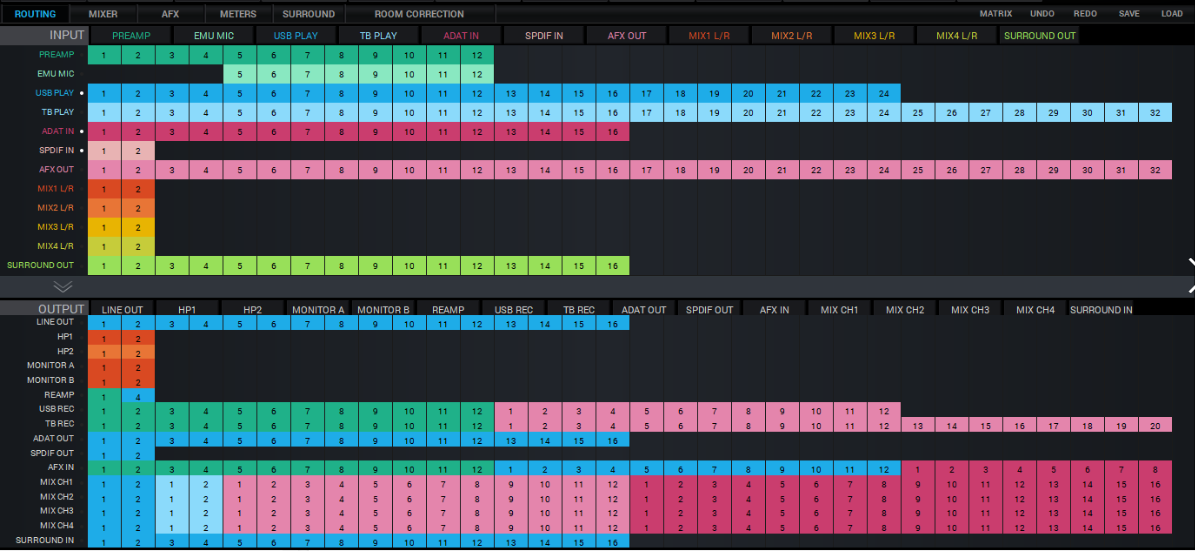
The new Control Panel provides separate channels for USB recording/playback and Thunderbolt recording/playback.
Host Mode
The new Host Mode menu allows users to select how the Orion Studio Synergy Core communicates with the connected computers.
The following options are available:
- TB — The device can stream and record audio only through the Thunderbolt connection.
- USB — The device can stream and record audio only through the USB connection.
- TB & USB — Thunderbolt is the primary connection, while USB is the secondary connection. The Control Panel can be opened only on the computer connected via Thunderbolt, and routing can be adjusted only from the primary computer. The device is available as a playback and recording device on the secondary computer.
- USB & TB — USB is the primary connection, while Thunderbolt is the secondary connection. The Control Panel can be opened and routing can be adjusted only from the computer connected via USB. The device is available as a playback and recording device on the secondary computer.
Selecting Host Mode
Host Mode can be selected from the device's System Setup menu.
To access System Setup:
- Press and hold the top button of the three red buttons on the right side of the display.
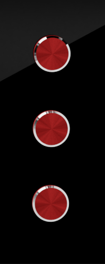
- Once the System Setup menu opens, use the Volume Encoder to navigate to Host Mode.
- Press the Volume Encoder to open the Host Mode menu.
- Select the desired connectivity mode using the Volume Encoder.
- Press the Volume Encoder to confirm your selection.
Edge 360 Support
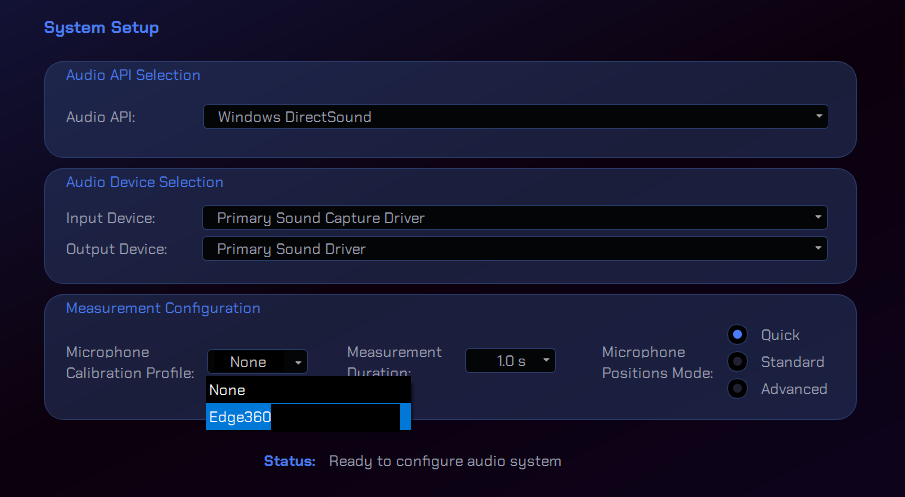
Users can now load their Edge 360 calibration file in Room Correction and use it during the measurement process. Using the individual calibration file helps improve the accuracy of the Room Correction measurement by accounting for the frequency-response characteristics of the specific Edge 360 microphone.
Follow the steps below to use an Edge 360 calibration file.
1. Register your Edge 360
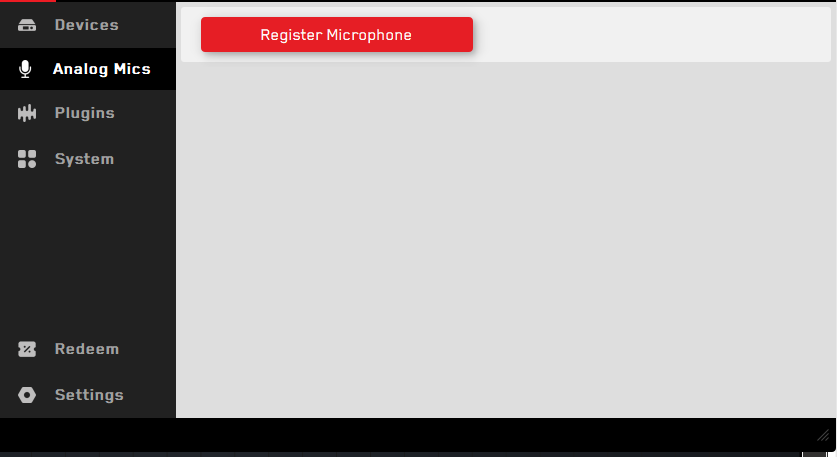
Open Antelope Launcher and go to the Analog Mics tab, click “Register Microphone” and enter your serial number. Once the microphone is registered, its individual calibration file will be downloaded automatically.
2. Select the calibration file in Room Correction
Open Room Correction in the Orion Studio Synergy Core Control Panel.
Once the calibration file has been downloaded to the computer, it will be available in the new Microphone Calibration dropdown menu.
4. Perform the measurement
Important: Each Edge 360 has an individual calibration file. Always make sure that you select the calibration file corresponding to the microphone being used for the measurement.